
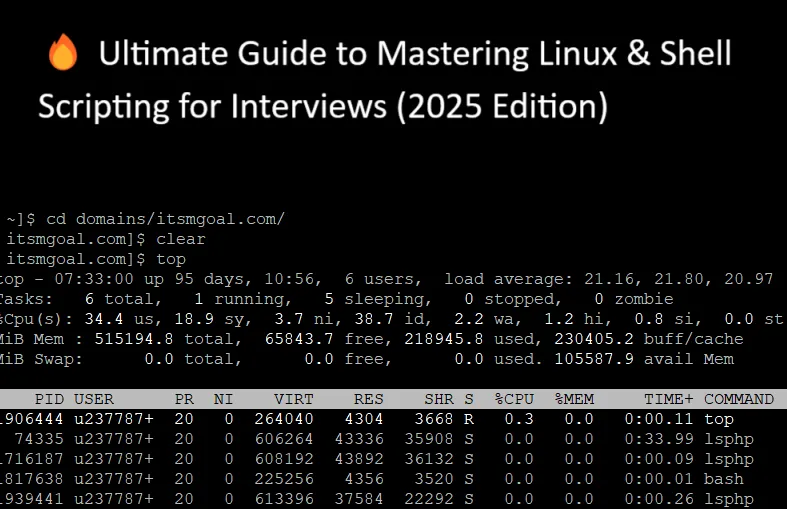
🔥 Ultimate Guide to Mastering Linux & Shell Scripting for Interviews (2025 Edition)
Ace your next interview in Linux, DevOps, or production support with this real-world guide on mastering Linux commands, shell scripting, and online practice tools.
Hey there,
If you’ve ever stared blankly at a terminal window, frantically Googled “how to check service status in Linux,” or fumbled through an interview question about cron jobs—trust me, you’re not alone.
I’ve been there. So have thousands of IT professionals, DevOps engineers, and freshers. Whether you're a student aiming for your first job, a job seeker eyeing that L2/L3 support role, or a professional trying to upskill, mastering Linux and shell scripting is no longer optional—it’s survival.
Let’s break down exactly how you can master Linux and shell scripting for job interviews, live production environments, and real-world troubleshooting—with zero fluff and 100% actionable steps.
💡 Why Linux and Shell Scripting Are the Backbone of IT
In 2025, Linux isn’t just popular—it’s dominant. It runs over 90% of cloud infrastructure, supports millions of production servers, and powers mission-critical platforms like e-commerce, banking, payments, and logistics.
If you’re targeting any of the following roles, Linux isn’t optional:
- Production Support (L1/L2/L3)
- System Administration
- DevOps/Platform Engineering
- Cloud Support (AWS, Azure, GCP)
- Site Reliability Engineering (SRE)
And here’s the kicker: Recruiters are now prioritizing candidates who can prove hands-on Linux skills—not just memorize theory.
🚀 The 3-Step Roadmap to Mastering Linux for Interviews and Production
Let’s get our hands dirty with real steps, commands, and scripting examples that I’ve personally seen asked in interviews or used in live environments.
🔧 Step 1: Practice Linux Commands Online – No Installation Needed
Forget VirtualBox or VMware nightmares. The browser-based Linux terminal is a game-changer. Just open it on any browser—laptop, mobile, even a tablet—and start practicing instantly.
✅ Try These Real-World Linux Commands Now
Let’s simulate a production issue: A service is down. You need to check logs, timestamp, directory structure. Here’s how to get started:
# View files in current directory
ls
# Check current location
pwd
# View current date/time - great for log correlation
date
# Create a new directory for logs
mkdir logs
# Move into the directory
cd logs
# Check file creation times (used in real-time log investigations)
ls -lh --time=ctime
Pro Tip: Interviewers LOVE asking you to explain what a command does. So, don’t just memorize—understand the purpose.
✍️ Step 2: Learn Shell Scripting Like a Pro – One Script at a Time
You know what's better than running manual commands?
Automating them.
That’s where shell scripting comes in. Whether it's restarting services, archiving logs, or alerting when disk usage hits 90%, a simple script can save hours in production.
Let’s walk through your first shell script—
🧪 Create a Shell Script to Print a Welcome Message
# Step 1: Create a script
vi sample.sh
# Inside vi, press i to enter insert mode, then type:
#!/bin/bash
echo "Welcome to ITSM Goal Linux Practice"
# Save and exit:
# Press Esc, then type :wq! and hit Enter
# Step 2: Make script executable
chmod +x sample.sh
# Step 3: Run it
./sample.sh
📌 Output:
Welcome to ITSM Goal Linux Practice
Cool, right?
🛠️ Real-World Script Examples (Asked in Interviews!)
Let’s take it up a notch with scripts actually asked in production support and L3 interviews.
🔍 Script to Check Service Status
#!/bin/bash
# check_service.sh
read -p "Enter service name: " service
if systemctl status "$service" > /dev/null 2>&1
then
echo "$service is running."
else
echo "$service is not running or not found."
fi
Run it like this:
bash
CopyEdit
./check_service.sh
And enter something like nginx or sshd.
📦 Script to Monitor Disk Usage and Alert
#!/bin/bash
# disk_alert.sh
threshold=80
used=$(df / | grep / | awk '{print $5}' | sed 's/%//')
if [ "$used" -gt "$threshold" ]; then
echo "Warning: Disk usage is at ${used}%"
else
echo "Disk usage is normal: ${used}%"
fi
Used in real environments to trigger alerts when / gets full. Replace / with /var or /home as needed.
📚 Step 3: Practice MCQs and Interview Scenarios
MCQs are the warm-up lap for most companies—especially in online assessments (Capgemini, Infosys, TCS, Wipro, etc.)
Here are a few must-practice areas:
🔸 Linux MCQ Topics to Master
- File permissions (chmod, chown)
- Cron jobs and scheduling
- Network troubleshooting (ping, netstat, telnet)
- Process monitoring (ps, top, kill)
- System boot and runlevels
- Differences: soft link vs hard link, TCP vs UDP
Example MCQ:
Q: What does the following command do?
chmod 755 script.sh
A: Sets read/write/execute permissions for owner, read/execute for group and others.
🎯 Real Interview Tips (From People Who Cracked It)
- Tip 1: Never just say “I know Linux.” Show how you used it to resolve a real issue.
- Tip 2: Prepare one “script story” for interviews: “I wrote a script to monitor a payment service uptime and restart it if it failed.”
- Tip 3: Practice on-the-go. Use ITSM Goal’s Linux terminal during breaks, commutes, or before bed.
📦 Pro Commands Used Daily in Production
| Command | Use Case |
|---|---|
| tail -n 100 filename.log | Read last 100 lines of a log file |
| grep "ERROR" logfile.log | Find error lines in logs |
| crontab -e | Schedule automation tasks |
| `ps -ef | grep process` |
| df -h | Check disk usage |
| free -m | Check memory usage |
| netstat -tulnp | List active network connections |
| systemctl restart nginx | Restart services |
| scp file user@ip:/path | Copy files across servers |
| chmod +x script.sh | Make script executable |
Here's a production-grade Linux and shell scripting cheatsheet designed specifically for job seekers, L1/L2/L3 production support engineers, and application support professionals. It breaks down commands by category with clear, real-world examples to help you understand how they're used in live environments—such as banking, e-commerce, cloud, and telecom infrastructure.
🧠 Ultimate Linux Commands + Shell Scripting Cheatsheet for Production & Interview Prep
This is your go-to Linux command reference—perfect for interviews, real-time issue debugging, automation, and health checks.
📁 1. Basic Navigation & File System
| Command | Use Case | Example |
|---|---|---|
| ls | List files in directory | ls /var/log/ |
| pwd | Show current directory | pwd → /home/user/ |
| cd | Change directory | cd /opt/tomcat/logs/ |
| date | Display system date/time | date → Mon Jun 9 13:00:00 IST 2025 |
| mkdir | Create new directory | mkdir app_logs |
| touch | Create empty file | touch debug.log |
| cat | View file content | cat application.properties |
✅ Used to access logs, verify config directories, or prep for automation tasks.
🛠️ 2. File and Directory Management
| Command | Use Case | Example |
|---|---|---|
| ls -lh --time=ctime | Check creation time (sort by change time) | ls -lh --time=ctime /tmp |
| ls -lh -t | List files sorted by time | ls -lh -t /var/log/ |
| ls -a | List hidden files | ls -a ~/.ssh |
| rm | Delete file | rm oldfile.txt |
| rmdir | Remove empty dir | rmdir tempdir/ |
| mkdir -p | Create nested dirs | mkdir -p /opt/logs/2025/june/ |
| chmod 755 file.sh | Set execute permission | chmod +x deploy.sh |
✅ Crucial when dealing with logs, temp files, permission issues, and config directories.
🧾 3. Content Filtering & Analysis
| Command | Use Case | Example |
|---|---|---|
| head | First 10 lines of file | head -n 20 access.log |
| tail | Last lines of file | tail -f catalina.out (real-time log monitoring) |
| sort | Sort alphabetically | sort users.txt |
| sort -r | Reverse sort | sort -r users.txt |
| cut -d':' -f1 | Extract field | cut -d':' -f1 /etc/passwd |
| wc -l | Line count | wc -l access.log (e.g., count login attempts) |
✅ Used to isolate log errors, parse specific fields, count entries, or live-tail service logs.
🔧 4. Script Creation & Execution
| Command/Concept | Use Case | Example |
|---|---|---|
| vi file.sh | Open script in editor | vi check_service.sh |
| #!/bin/bash | Shebang for bash scripts | (Top of every script) |
| sh file.sh | Execute script | sh deploy.sh |
| ./file.sh | Execute with permissions | chmod +x deploy.sh && ./deploy.sh |
| echo "..." | Print message | echo "Deployment complete" |
📝 Sample Script: Service Health Check
#!/bin/bash
SERVICE="tomcat"
if systemctl status $SERVICE | grep "active (running)" > /dev/null
then
echo "$SERVICE is running"
else
echo "$SERVICE is down"
fi
✅ Expected in interviews for roles like L2/L3. Used in real automation for monitoring services.
🔁 5. Service & Process Management
| Command | Use Case | Example |
|---|---|---|
| systemctl status | Check service | systemctl status nginx |
| systemctl start | Start service | sudo systemctl start nginx |
| systemctl stop | Stop service | sudo systemctl stop nginx |
| ps aux | List all processes | `ps aux |
| kill -9 PID | Force kill process | kill -9 2345 |
| top | Live process view | top or htop (if available) |
✅ Daily used in triaging high CPU issues, restarting services, or killing hanging jobs.
🚨 6. System Health Monitoring & Disk Usage
| Command | Use Case | Example |
|---|---|---|
| df -h | Disk usage (human-readable) | df -h / |
| du -sh folder/ | Folder size | du -sh /var/log |
| uptime | System uptime & load | uptime |
| free -m | Memory usage | free -m |
| vmstat 1 | CPU/Memory snapshot | vmstat 1 5 |
| iostat | Disk I/O stats | iostat -xm 1 |
| netstat -tulnp | Open ports & services | `netstat -tulnp |
| lsof -i | Open files by network connection | lsof -i :3306 |
✅ Used by L2 engineers for alerts and RCA (Root Cause Analysis).
🌐 7. File Transfer & Remote Access
| Command | Use Case | Example |
|---|---|---|
| scp | Secure copy files | scp file.txt user@server:/tmp |
| rsync | Fast file sync | rsync -avz /src/ user@host:/dest/ |
| ssh | Connect to server | ssh [email protected] |
| sftp | Secure file transfer | sftp user@host |
✅ Used in deployments, backups, and transferring logs for debugging.
🔐 8. User & Permission Management
| Command | Use Case | Example |
|---|---|---|
| whoami | Current user | whoami |
| id | User ID & groups | id appuser |
| chown | Change ownership | chown tomcat:tomcat logs/ |
| chmod | Set permissions | chmod 755 run.sh |
| adduser | Add new user | sudo adduser devops |
| passwd | Change password | passwd devops |
✅ Crucial for managing secure access and file ownership in team environments.
📜 9. Log Management & Purge
| Command | Use Case | Example |
|---|---|---|
| find | Locate files | find / -name "*.log" |
| grep | Search inside files | grep "error" /var/log/syslog |
| logrotate | Rotate logs | logrotate /etc/logrotate.conf |
| rm -rf *.log | Purge logs | find /var/log -name "*.log" -type f -mtime +7 -exec rm -f {} \; |
✅ Used to avoid disk space alerts, search critical errors, or rotate logs for compliance.
🧠 10. Advanced & Production-Specific Examples
🔄 Script: Auto-Purge Logs Older Than 7 Days
#!/bin/bash
find /opt/tomcat/logs/ -name "*.log" -type f -mtime +7 -exec rm -f {} \;
💓 Script: Monitor Disk Space and Send Alert
#!/bin/bash
USAGE=$(df -h / | grep / | awk '{ print $5 }' | sed 's/%//g')
if [ $USAGE -gt 80 ]; then
echo "Disk usage critical: ${USAGE}%" | mail -s "Disk Alert" [email protected]
fi
❓ FAQ: Linux & Shell Scripting for Support Roles
Q1: What Linux commands are most asked in interviews?
- ls, ps, df -h, systemctl status, grep, tail -f, chmod, and simple scripts like service health check or log analysis.
Q2: Do I need to memorize all shell scripting syntax?
- No, but you must understand flow (loops, conditions) and real use cases (e.g., auto cleanup, health checks).
Q3: How do I practice Linux if I can’t install it?
- Use free, browser-based platforms like:
- JSLinux
- Webminal
- [ITSM Goal’s Linux Lab]
Q4: What’s the difference between sh script.sh and ./script.sh?
- sh script.sh runs via shell interpreter.
- ./script.sh runs directly if execute permission is set.
Q5: What command helps identify top resource-hogging processes?
- Use top, htop, or ps aux --sort=-%mem | head for memory usage.
🧰 Recommended Browser-Based Linux Terminals for Practice
- JSLinux – Lightweight and blazing fast
- Webminal – Best for beginners and scripting
- Copy.sh Linux Emulator – Full OS emulation
- Katacoda – Hands-on DevOps scenarios
- LXD by Canonical – For advanced system-level practice
🎯 Final Thoughts: Practice, Script, Repeat
I get it—Linux can feel intimidating at first. But the moment you write your first working script or fix a live issue using just a few terminal commands—you’ll feel unstoppable.
Don’t just aim to clear the interview. Aim to thrive in the job.
Start small. Stay consistent. And use tools like free online Linux lab to build skills that genuinely make a difference.
❓FAQ: Linux & Shell Scripting for Interviews
Q1: Is Linux really required for DevOps and Cloud jobs in 2025?
Yes! Linux is still the backbone of most cloud platforms (AWS, GCP, Azure), and scripting is essential for automation and troubleshooting.
Q2: How much scripting should I know for L2 roles?
Basic shell scripting like service checks, disk monitoring, and log parsing is expected. For L3, deeper knowledge (loops, cron, functions) is a must.
Q3: Can I practice Linux without installing anything?
Absolutely! You can refer the tools mentioned below and start practising now.
Q4: Which topics are commonly asked in Linux interviews?
- File handling
- Permissions
- Networking
- Process management
- Shell scripting
- System logs
Q5: Are there advanced Linux tools I should learn too?
Yes—awk, sed, cut, find, xargs, rsync, tmux, and screen are frequently used in real environments.
Q6: How do I prepare for real-world scenarios?
Simulate production problems like service crashes, disk space issues, or cron failures. Then write scripts or use commands to fix them.
Ready to start? Head over to ITSM Goal's free resources and start practicing now
Your next job, promotion, or dream DevOps role could be just one #!/bin/bash away.
👨💻💥 Let’s do this!